
Reinstalling the scanner driver from the CD-ROM (Macintosh)
Solution
CAUTION
* If your Mac OS X is used with multiple users (accounts), log in as the first created administrator to install the software. You cannot install the software if you logged in with an added administrator account.
* The reinstallation will require to restart the computer in the process. Read this page carefully before reinstalling the driver.
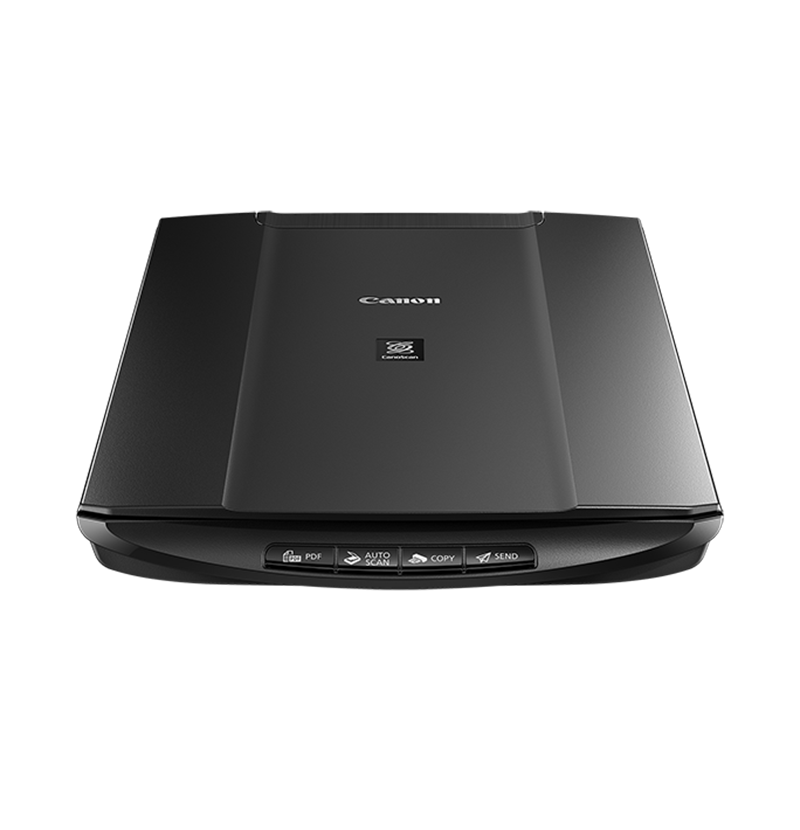
On Macintosh HD, open [Library], [ImageCapture], then [Twain Data Sources]. Drag and drop the [(your scanner name).ds] icon to the trash can icon.

The scanner driver is uninstalled.
In the next step, install the scanner driver after the computer is restarted.
[CANOSCAN] Finder opens. Double-click the [Setup] icon in the finder.
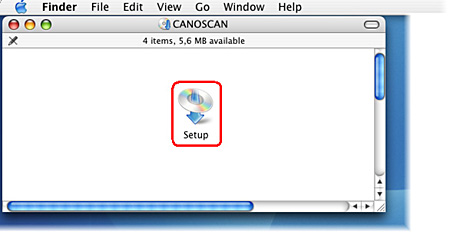
5. If "Authenticate" screen is displayed, enter the administrator's (first created user) name and password and then click [OK].

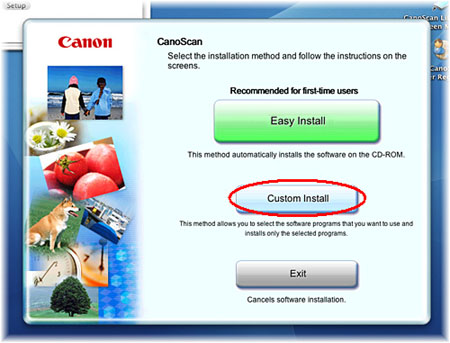
When the screen to select software is displayed, make sure that ScanGear is checked and remove the checkmarks of the other applications. Click [Install].
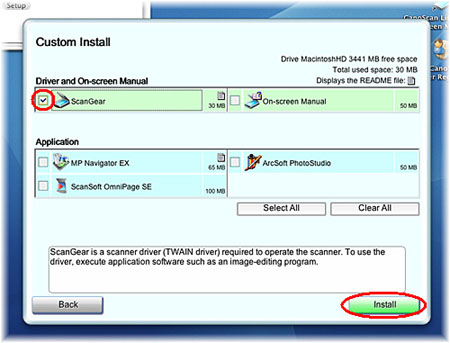
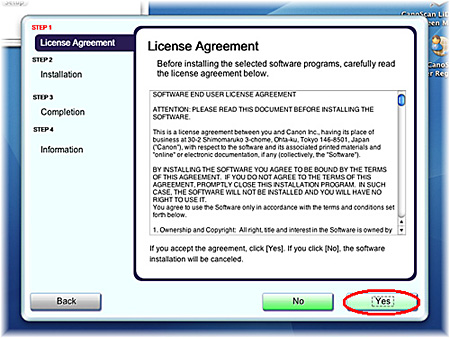
9. The installation starts. The installation progress will be displayed until the Setup CD-ROM stops.

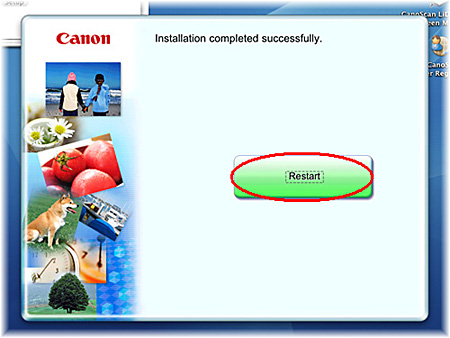
You cannot use the scanner unless you restart the computer.
CAUTION
* Make sure that the lock switch is released.
* Connect the scanner to the computer with the supplied USB cable.
* The scanner may not work properly if the scanner is connected via USB hub. In this case, connect the scanner to the computer directly.