If the IP address is not assigned automatically, or you want to specify the IP address manually, follow the below procedure.
1. Press [Additional Functions].
2. Press [<-] or [+>] to select <SYSTEM SETTINGS>, then press [OK].
3. Press [<-] or [+>] to select <NETWORK SETTINGS>, then press [OK].
4. Press [<-] or [+>] to select <TCP/IP SETTINGS>, then press [OK].
5. Press [<-] or [+>] to select <IP ADDRESS AUTO.>, then press [OK].
6. Press [<-] or [+>] to select <OFF>, then press [OK].
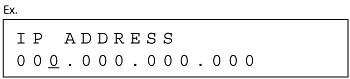
7. Press [<-] or [+>] to select <IP ADDRESS>, then press [OK].
8. Use the numeric keys to enter the IP address, then press [OK].
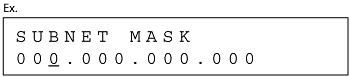
9. Press [<-] or [+>] to select <SUBNET MASK>, then press [OK].
10. Use the numeric keys to enter the subnet mask, then press [OK].
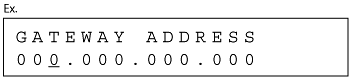
11. Press [<-] or [+>] to select <GATEWAY ADDRESS>, then press [OK].
12. Use the numeric keys to enter the gateway address number, then press [OK].
13. Turn off the main power on the left side of the machine, then turn on the power to restart the machine.
Check My Booking
Provide your booking code and email address you used for the registration, we will re-send the confirmation email to you.
You’re being redirected to Canon Asia website for Medical & Industrial product information.
By continuing to use this website, you are agreeing to our Term of Use and Privacy Policy (including the use of cookies by this site to offer you a better experience).