
Uploading Recordings to YouTube and Facebook Using an Computer
Solution
You can upload movies to YouTube and movies and photos to Facebook using the supplied software Network Utility running on a Windows computer.
IMPORTANT
If you have not done so already, complete the Wi-Fi network setup and file transfer destination setup in advance.
* Network Utility will be installed automatically after you install VideoBrowser. please see Installing PIXELA VideoBrowser/Network Utility.
1. Set the camcorder to playback mode and then press [  ].
].
].2. Open the index screen that contains the recordings you want to upload.
3. Select the service you wish to upload to.
3-1. Touch [Edit].

3-2. Touch [Network Utility].
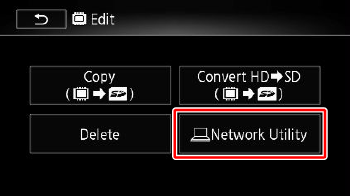
3-3. Select desired service.
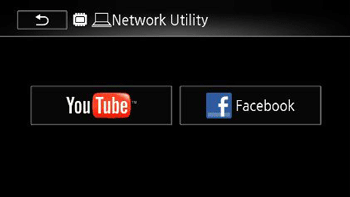
Photos can be uploaded to [Facebook] only.
4. Touch the desired recording.
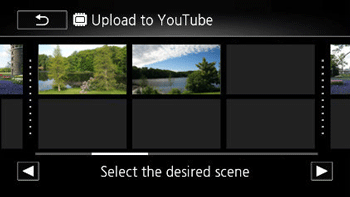
5. Upload recordings.
If you are uploading to YouTube, read the YouTube agreement carefully and touch [I Agree] if you agree.
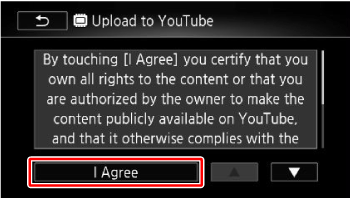
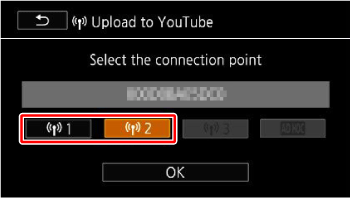
Touch the desired connection point to connect the camcorder to the network and then touch [OK].
- Once connected, or if only one connection point has been set up, the wireless upload will begin automatically.
You can touch [Stop] and then [  ] to cancel the wireless upload while it is in progress.
] to cancel the wireless upload while it is in progress.6. Touch [OK].
NOTE
Depending on the wireless router's settings and capability, it can take some time to upload video files.