

Storing/Editing Destinations in Group Dial
Solution
Multiple destinations can be combined into groups. After a group is registered, you can add or delete destinations.
NOTE
- Only destinations of the same type of address can be registered in the same group.
- Shared folders cannot be registered in a group as destinations.
1. Press  and tap <Addr. Book>.
and tap <Addr. Book>.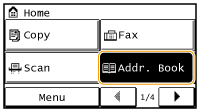
2. Tap <Regist Dest.>.
- If a screen appears prompting you to enter a PIN, enter the correct PIN using the numeric keys, and tap <Apply>. For details, see the "User's Guide" from the Canon website (canon.com/oip-manual).
3. Tap <Coded Dial>.
- Groups can also be registered in One-Touch Dial. Select <One-Touch> to register the group as a One-Touch Dial number.
4. Tap <Group>.
5. Tap <Name>.
- Registering <Name> is optional. If you register <Name>, the destination can be searched alphabetically.
6. Enter the name using the numeric keys, and tap <Apply>.
7. Tap <Number of Destinations>.
8. Tap <Add>.
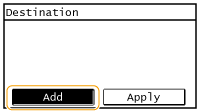
9. Use  /
/  to select the tab and tap a destination you want to register.
/ to select the tab and tap a destination you want to register.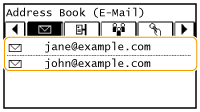
10. Tap <Add>.
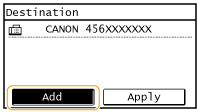
11. Repeat steps 8 and 9 until you have registered all of the destinations that you want to register, and then tap <Apply>.
12. Tap <Apply>.

After registering destinations, you can change the content of groups such as names, destinations, and coded dial numbers.
1. Press and tap <Addr. Book>.
and tap <Addr. Book>.2. Tap <Details/Edit>.
3. Select < > using / , and tap the destination you want to change.
> using / , and tap the destination you want to change.4. Tap <Edit>.
- If a screen appears prompting you to enter a PIN, enter the correct PIN using the numeric keys, and tap <Apply>. For details, see the "User's Guide" from the Canon website (canon.com/oip-manual).
5. Select the item you want to edit, perform editing, and then tap <Apply>.
6. Tap <Apply>.

1. Press and tap <Addr. Book>.
and tap <Addr. Book>.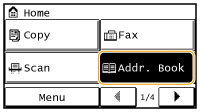
2. Tap <Details/Edit>.
3. Select <> using / , and tap the group you want to delete.
> using / , and tap the group you want to delete.4. Tap <Delete>.
- If a screen appears prompting you to enter a PIN, enter the correct PIN using the numeric keys, and tap <Apply>. For details, see the "User's Guide" from the Canon website (canon.com/oip-manual).
5. Tap <Yes>.