





Customizing the Home Screen
Solution
You can change the order that buttons in the <Home> screen are displayed in according to your application or a preferred arrangement.
1. Press  and tap <Home Set.>.
and tap <Home Set.>.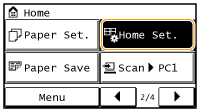
- If a screen appears prompting you to enter a PIN, enter the correct PIN using the numeric keys, and tap <Apply>. For details, see the "User's Guide" from the Canon website (canon.com/oip-manual).
2. Tap <Set Display Order>.
3. Tap the button to move.

4. Tap <Previous> or <Next> to move the button, and tap <Apply>.
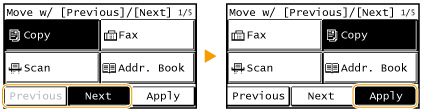
5. Repeat steps 3 and 4 to move all buttons you want to move.
6. Tap <End>.
1. Press and tap <Home Set.>.
and tap <Home Set.>.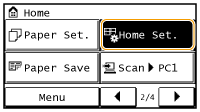
- If a screen appears prompting you to enter a PIN, enter the correct PIN using the numeric keys, and tap <Apply>. For details, see the "User's Guide" from the Canon website (canon.com/oip-manual).
2. Tap <Insert and Delete Blank>.
3. Tap the button where you want to insert a blank, and tap <Insert>.
- To delete an inserted blank, select the blank, tap <Delete>, and proceed to step 5.

4. Tap <Apply>.
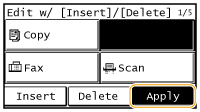
5. Tap <End>.