
Loading Paper in the Drawer
Solution
Load the paper into the drawer.
IMPORTANT
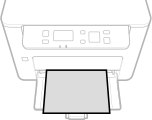
Always load paper in portrait orientation
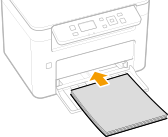
- Paper cannot be loaded in landscape orientation. Be sure to load paper in portrait orientation, as shown in the illustration below.
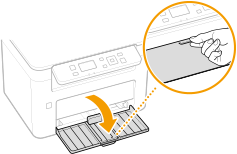
1. Open the drawer.
NOTE
When replenishing paper
- When the drawer is already opened and the paper cover is covered, remove the paper cover.
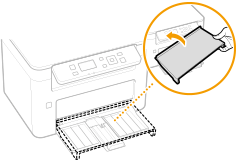
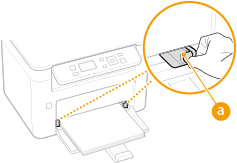
2. Spread the paper guides apart.
- Slide the paper guides outward.
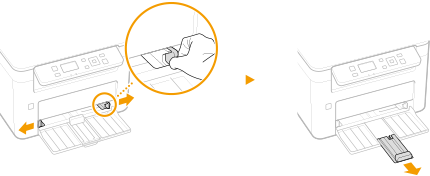
3. Load the paper and slide it all the way in, until it touches the back side.
- Load the paper in portrait orientation (with the short edge toward the machine) and the print side face up. Paper cannot be loaded in landscape orientation.
- Before loading it, fan the paper stack well, and tap it on a flat surface to align the edges.
- When you insert the paper with <Notify to Check Paper Settings> set to <On>, a confirmation screen is displayed.
IMPORTANT
Keep the paper stack within the load limit guides
- Make sure that the paper stack does not exceed the load limit guides (
 ). Loading too much paper may cause paper jams.
NOTE
- When loading envelopes or preprinted paper, see the "User's Guide" from the Canon website (canon.com/oip-manual).
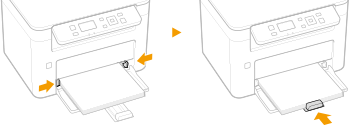
4. Align the paper guides against the edges of the paper.
- Align the paper guides securely against the edges of the paper.
IMPORTANT
Align the paper guides securely against the paper
- Paper guides that are too loose or too tight may cause misfeeds or paper jams.
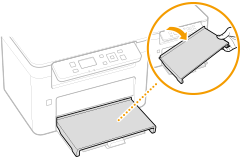
5. Replace the paper cover.
NOTE
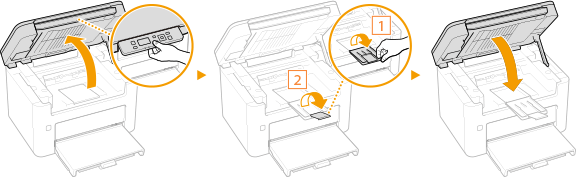
- When performing printing, open the paper stopper in advance so that the output paper does not fall out of the output tray.
IMPORTANT
When changing the paper size or type
- The factory default settings for paper size and type are <A4> and <Plain>, respectively. If you load a different size or type of paper into the machine, make sure to change the settings. If you do not change the settings, the machine cannot print properly.