

If You Want to Connect the Printer and Computer with a LAN Cable
Solution
Because this printer supports 10BASE-T and 100BASE-TX connections, you can share the printer by directly connecting to a network from computers including Windows, Macintosh, and UNIX.
* This printer recognizes the Ethernet type (100BASE-TX or 10BASE-T) automatically.
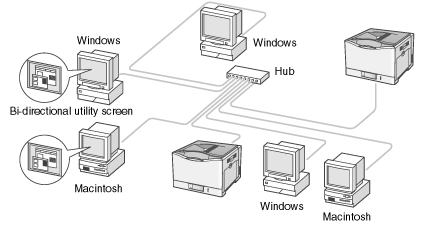
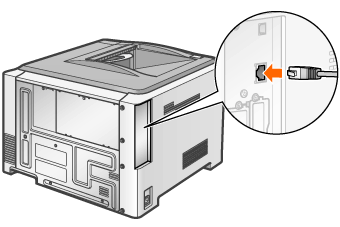
1. Connect the LAN cable to the LAN connector of this printer.
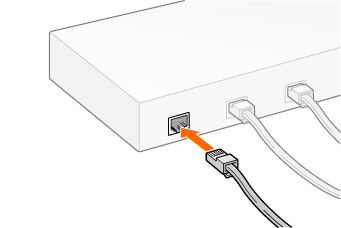
2. Connect the other end of the LAN cable to the hub.
IMPORTANT
If more than one devices are connected to an AppleTalk network
- Turn on each device at an interval of ten seconds or longer.
NOTE
About the LAN cable
- This printer does not come with a LAN cable or a hub. Have cables or a hub ready as needed. Use a Category 5 twisted pair cable for the LAN.
- If you want to connect the printer to a 100BASE-TX Ethernet network, all the devices to be connected to the LAN (hub, LAN cable, and network board for computer) must support 100BASE-TX. For more details, contact your local authorized Canon dealer.
When the printer is connected to a network
- Check the MAC address of the print server with Configuration Page, and then configure the network operating system (UNIX, etc.) and print server.