
How do I set the White Balance? (EOS M)
Solution
The function adjusting the color tone so that white objects look white in the picture is called white balance (WB). Normally, the <AWB> (Auto) setting will obtain the correct white balance. If natural-looking colors
cannot be obtained with <AWB>, you can select the white balance that matches the light source or set it manually by shooting a sheet of white
paper, etc.
NOTE
- In the Basic Zone modes, <AWB> will be set automatically.
- For more information about the White Balance, refer to Matching the Camera Settings to the Light Source (What is White Balance?).
To set the White Balance, follow the steps below.
1. Set the power to <ON>.
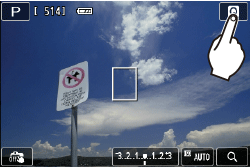
2. Touch [Q] to display the Quick Control screen.
3. Tap a white balance to select it.
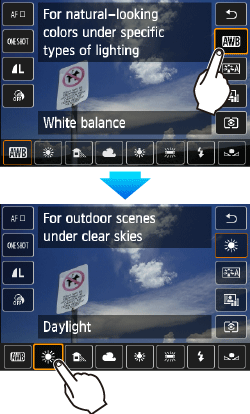
 (Custom white balance) enables you to manually set the white balance for a specific light source for better accuracy. Perform this procedure under the actual light source to be used.
For more information on registering custom white balance, please refer to the instruction manual that came with your camera.
This completes the white balance setting.