

What Can I Do Using the Wireless LAN Functions? (EOS M2)
Solution
This camera’s wireless LAN functions let you perform a range of tasks wirelessly, from sending images to Web services and other cameras to controlling the camera remotely, simply by connecting to a Wi-Fi network or other device supporting this camera’s wireless LAN functions.
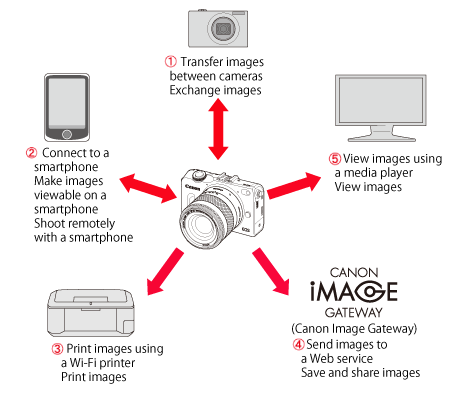

 Transfer images between cameras
Transfer images between this camera and other Canon cameras with built-in wireless LAN functions.

 Connect to a smartphone
View saved images or operate the camera from your smartphone. Install the dedicated application "Camera Connect" on your smartphone to use these functions.

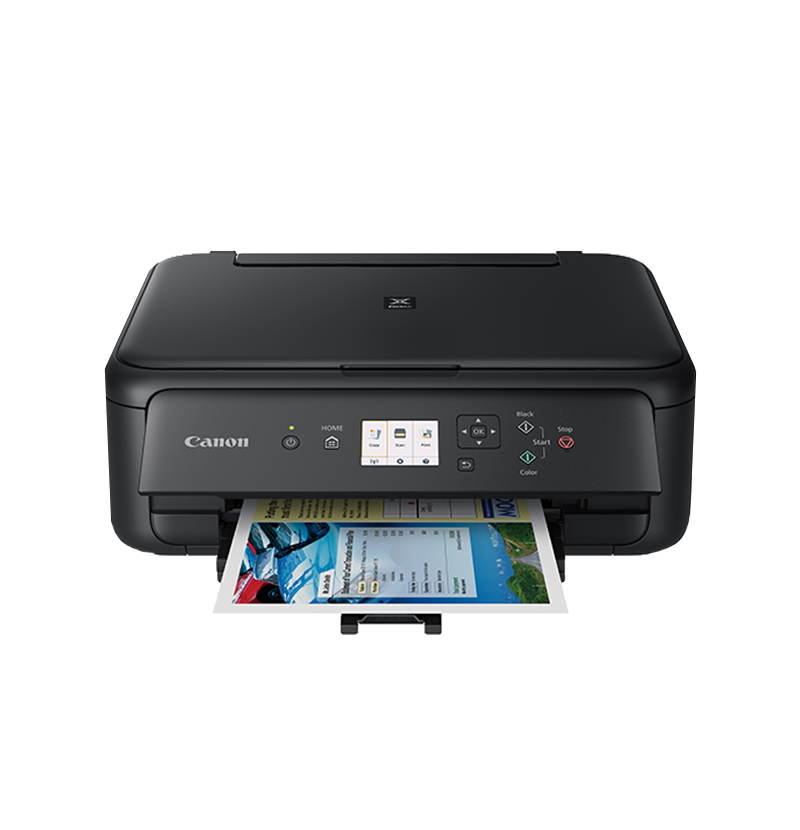
 Print images using a Wi-Fi printer
Connect the camera to a wireless LAN compatible printer supporting PictBridge (Wireless LAN) to print images wirelessly.

 Send images to a Web service
Upload your images to CANON iMAGE GATEWAY, an online photo service for Canon users (free registration required), to share them with family and friends.

 View images using a media player
Display images on the camera’s memory card on your TV set, by using a media player supporting DLNA* via a wireless LAN.
* Digital Living Network Alliance
IMPORTANT
・CANON iMAGE GATEWAY Web services are not supported in certain countries and areas. For information on countries and areas supporting CANON iMAGE GATEWAY services, refer to the Canon Web site (http://canon.com/cig).
・Settings for "Send images to a Web service" may not be performed from a computer in certain countries and areas.
NOTE
Connection methods:
・Camera access point mode:
A simple wireless LAN mode where a camera and smartphone, or a camera and printer can be directly connected via a wireless LAN.
・Infrastructure mode:
A wireless LAN mode that connects to each Wi-Fi device via a wireless LAN access point. In this mode, communication to a distant Wi-Fi device can be established as long as a wireless LAN access point is located nearby.
Transfer images between cameras| Setup | Set up another Canon camera with built-in wireless LAN functions |
|---|---|
 | |
| Connection method | Connect the cameras directly via a wireless LAN |
| |
| Now you can... | Transfer images between cameras |
Connect to a smartphone| Setup | Install Camera Connect on a smartphone |
|---|---|
| |
| Connection method | ・Camera access point mode ・Infrastructure mode |
| |
| Now you can... | ・View images on the camera ・Shoot remotely |
Print images using a Wi-Fi printer| Setup | Set up a Wi-Fi printer supporting PictBridge (Wireless LAN) |
|---|---|
| |
| Connection method | ・Camera access point mode ・Infrastructure mode |
| |
| Now you can... | Play back and print images |
Send images to a Web service| Setup | ・Set up a computer with EOS Utility installed and a wireless LAN access point that can access the Internet ・Sign up as a CANON iMAGE GATEWAY member ・Configure the camera for Web service access |
|---|---|
| |
| Connection method | Infrastructure mode |
| |
| Now you can... | ・Send images to Web services ・Send Emails to your acquaintances |
View images using a media player| Setup | ・Set up devices supporting DLNA and a wireless LAN access point ・Connect a media player to a TV set |
|---|---|
| |
| Connection method | Infrastructure mode |
| |
| Now you can... | View images on the camera by operating the media player |
NOTE
・Wi-Fi is a registered trademark of the Wi-Fi Alliance.