

Setting Activity Reports to Print Automatically
Solution
This section describes how to set Activity Reports to print automatically.
The default settings are as follows:
- <Auto Print>: On
- <Send/Receive Separate>: Off
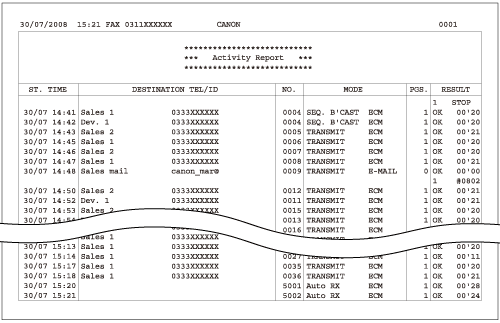
The following items are printed in an Activity Report:
- DEPT. ID: If Department ID Management is set, the Department ID is printed. Transmission logs are listed for each Department ID.
- ST. TIME: Transmission start time
- DESTINATION TEL/ID: Destination name and number or address. If a job is sent to a file server (FTP or SMB), the path name is printed on the second line.
- NO: Transaction number. Numbers between 0001 and 4999 are for sent jobs, while numbers between 5001 and 9999 are for received jobs.
- MODE: Transaction mode
- PGS.: Number of pages sent
- RESULT: Result of transaction and transaction duration
- OK: Transmission successful
- NG: Transmission failed or canceled using [Stop]
- - -: E-mail, I-fax, or transmission to a file server has been confirmed as successful.
1. Press  (Main Menu).
(Main Menu).2. Press the right Any key to select <Additional Func.>.
3. Use [  ] , [
] , [  ] or
] or  (Scroll Wheel) to select <Report Settings>, then press [OK].
] , [ ] or (Scroll Wheel) to select <Report Settings>, then press [OK].4. Use [ ] , [ ] or (Scroll Wheel) to select <Settings>, then press [OK].
] , [ ] or (Scroll Wheel) to select <Settings>, then press [OK].5. Use [ ] , [ ] or (Scroll Wheel) to select <Activity Report>, then press [OK].
] , [ ] or (Scroll Wheel) to select <Activity Report>, then press [OK].6. Use [ ] , [ ] or (Scroll Wheel) to select <Auto Print>, then press [OK].
] , [ ] or (Scroll Wheel) to select <Auto Print>, then press [OK].7. Use [ ] , [ ] or (Scroll Wheel) to select <On> or <Off>, then press [OK].
] , [ ] or (Scroll Wheel) to select <On> or <Off>, then press [OK].- <On>: The Activity Report is automatically printed when the number of send and receive transactions reaches 40.
- <Off>: The Activity Report is not automatically printed.
8. Use [ ] , [ ] or (Scroll Wheel) to select <Send/Receive Separate>, then press [OK].
] , [ ] or (Scroll Wheel) to select <Send/Receive Separate>, then press [OK].9. Use [ ] , [ ] or (Scroll Wheel) to select <On> or <Off>, then press [OK].
] , [ ] or (Scroll Wheel) to select <On> or <Off>, then press [OK].- <Off>: The send and receive logs are not printed separately.
- <On>: The send and receive logs are printed separately.
10. Press (Main Menu) to return to the Main Menu screen.
(Main Menu) to return to the Main Menu screen.