


Setting RX Reports to Print Automatically
Solution
This section describes how to set RX reports to print automatically.
The default setting is <Off>.
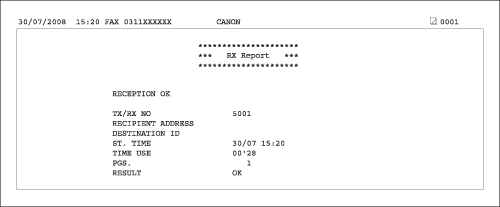
The following items are printed in an RX Report:
- Transaction description
- TX/RX NO: Transaction number
- RECIPIENT ADDRESS: Recipient's number or address
- DESTINATION ID: Sender's name registered in Address Book
- ST. TIME: Reception start time
- TIME USE: Reception duration
- PGS.: Number of pages received
- RESULT: Result of transaction
- OK: Reception successful
- NG: Reception failed
- STOP: Reception manually canceled before completion
- If reception is failed, the number of the page that could not be received and error code are printed.
1. Press  (Main Menu).
(Main Menu).2. Press the right Any key to select <Additional Func.>.
3. Use [  ] , [
] , [  ] or
] or  (Scroll Wheel) to select <Report Settings>, then press [OK].
] , [ ] or (Scroll Wheel) to select <Report Settings>, then press [OK].4. Use [ ] , [ ] or (Scroll Wheel) to select <Settings>, then press [OK].
] , [ ] or (Scroll Wheel) to select <Settings>, then press [OK].5. Use [ ] , [ ] or (Scroll Wheel) to select <RX Report>, then press [OK].
] , [ ] or (Scroll Wheel) to select <RX Report>, then press [OK].6. Use [ ] , [ ] or (Scroll Wheel) to select <Off>, <On> or <Only When Error Occurs>, then press [OK].
] , [ ] or (Scroll Wheel) to select <Off>, <On> or <Only When Error Occurs>, then press [OK].- <Off>: Does not print a report.
- <On>: Prints a report every time you receive a document.
- <Only When Error Occurs>: Prints a report only when a reception error occurs.
7. Press (Main Menu) to return to the Main Menu screen.
(Main Menu) to return to the Main Menu screen.